I'm starting a new weekly post called the Friday BlogRoll. This is going to be some of the entries from the blog world that I found useful. It will usually be tech blogs but like everyone else in the Tech world I read other blogs too. Remember part of my blog title is "...and everything else..."
MVP Florian Frommherz had a really good entry on PDC Chaining
Really good concise explanation of what PDC chaining is and how it works. I highly recommend subscribing to Florian's blog.
The Active Directory Documentation Team has released an updated document detailing Active Directory Port Requirements
It is definitely good to know what ports are needed for AD, especially in environments where there may be firewalls and port blockages that could hinder operations. This is also where network traces and tools like portqry come in handy.
The Windows Blog team posted a blog outlining the pricing and upgrade options for Windows 7
I would have personally liked to see the prices a little lower. I understand the pricing but in these tough economic times I wonder how many people will go out and buy Windows 7. I'm guessing many will wait for their next PC that comes with Windows 7 installed. I have a feeling Windows 7 will be around 10 years from now... it is a good solid OS.
Staying on the Windows 7 theme, Microsoft has a good Windows Client Feature Comparison PDF available for download.
This is something you can give to your manager or anyone that asks what the key differences are between Windows 7, Vista, and XP.
MVP Don Jones has an ongoing 26 part series on Powershell over at Concentrated Tech.
Don has been a leader in the scripting community for years now and this is another great example of why he is one of the best around. He along with MVP Greg Shields do a great job on the Concentrated Tech site.
My brother Andy recently posted a video on YouTube about his thoughts on Twitter
Good response from the crowd at the Washington DC Improv, I could never get up and do stand up. Leave him a comment if you like the material and tell him I sent you :).
Friday, June 26, 2009


Wednesday, June 24, 2009
Find Nested Group Members
I've run into a few questions recently where someone wanted to find the members of a security group. That in itself is fairly straight forward.
However what if your security group has nested groups and users. Then those nested groups may also have additional nested groups and users. What does that query look like? How do you find all the members?
Suppose I have the following Example

There are several ways to do this, I'm not saying these are the only methods but these are three examples that work.
The first method is to use the PowerShell. For this example you will need the Quest AD Cmdlets. Thanks to MVP Dmitry Sotnikov for the Quest cmdlets.
Get-QADGroupMember "Group Name" -indirect

The second method is using ADFIND by MVP Joe Richards
adfind -default -bit -f "memberof:1.2.840.113556.1.4.1941:=DN of Group" samaccountname -nodn

More on that query here
Big Thanks to Chris Dent for that part. He was also involved in the questions. Chris was an MVP and should be an MVP again. One of the best and most knowledgeable guys around.
Now on to method three. Some people (especially in classified networks) can't install the Quest cmdlets or adfind (or any third party tool)
The Microsoft DStools can be used. For this example I'll use dsquery and dsget
dsquery group -samid "group name" | dsget group -members -expand

I hope that helps someone out there. Please let me know via comments if there are any questions.
Thanks
Mike
However what if your security group has nested groups and users. Then those nested groups may also have additional nested groups and users. What does that query look like? How do you find all the members?
Suppose I have the following Example
- TopLevelGroup -- Global Security Group
- TopLevel -- User
- TopLevel2 - User2
- Nested1 - Global Security Group
- Nested1 Members
- Nested User
- Nested User 2
- InsideNested - Global Security Group
- InsideNested Members
- InsideNested1
- InsideNested1
- Nested User
- TopLevel -- User

There are several ways to do this, I'm not saying these are the only methods but these are three examples that work.
The first method is to use the PowerShell. For this example you will need the Quest AD Cmdlets. Thanks to MVP Dmitry Sotnikov for the Quest cmdlets.
Get-QADGroupMember "Group Name" -indirect

The second method is using ADFIND by MVP Joe Richards
adfind -default -bit -f "memberof:1.2.840.113556.1.4.1941:=DN of Group" samaccountname -nodn

More on that query here
Big Thanks to Chris Dent for that part. He was also involved in the questions. Chris was an MVP and should be an MVP again. One of the best and most knowledgeable guys around.
Now on to method three. Some people (especially in classified networks) can't install the Quest cmdlets or adfind (or any third party tool)
The Microsoft DStools can be used. For this example I'll use dsquery and dsget
dsquery group -samid "group name" | dsget group -members -expand

I hope that helps someone out there. Please let me know via comments if there are any questions.
Thanks
Mike
Tuesday, June 16, 2009
CodePlex, a Site every AD admin should know
CodePlex is an open source project hosting website run by Microsoft. It allows shared development of open source software.
CodePlex is similar to SourceForge
There are a few key projects for the AD admin that I'd like to highlight. In future posts I'll write reviews of these products/tools. Will there be another 4/4 OU Award? :)
ADModify.NET
ADModify was created to make it easier to modify / import / export objects in Active Directory in bulk. ADModify also has a very nice undo feature if you need to back out of changes
PAL Tool
PAL is a tool that reads in a performance monitor counter log (any known format) and analyzes it using complex, but known thresholds (provided). The tool generates an HTML based report which graphically charts important performance counters and throws alerts when thresholds are exceeded. The thresholds are originally based on thresholds defined by the Microsoft product teams and members of Microsoft support, but continue to be expanded by this ongoing project.
AD Utils
AD Utils are utilities that are primarily focused on administration and operations of Active Directory.
The AD Utils include
There are many other tools and utilities on CodePlex. Please leave comments about some other good/useful tools you use for your AD and Server Administration duties from the site.
I'll be posting more information and reviews of the utilites in the future.
CodePlex is similar to SourceForge
There are a few key projects for the AD admin that I'd like to highlight. In future posts I'll write reviews of these products/tools. Will there be another 4/4 OU Award? :)
ADModify.NET
ADModify was created to make it easier to modify / import / export objects in Active Directory in bulk. ADModify also has a very nice undo feature if you need to back out of changes
PAL Tool
PAL is a tool that reads in a performance monitor counter log (any known format) and analyzes it using complex, but known thresholds (provided). The tool generates an HTML based report which graphically charts important performance counters and throws alerts when thresholds are exceeded. The thresholds are originally based on thresholds defined by the Microsoft product teams and members of Microsoft support, but continue to be expanded by this ongoing project.
AD Utils
AD Utils are utilities that are primarily focused on administration and operations of Active Directory.
The AD Utils include
- CheckDSAcls
- ReplDiag
- TrustCheck
- FindGuidInAD
- SearchForDuplicateAttributeData
There are many other tools and utilities on CodePlex. Please leave comments about some other good/useful tools you use for your AD and Server Administration duties from the site.
I'll be posting more information and reviews of the utilites in the future.
Tuesday, June 9, 2009
Find Users Who are Not in Specific Groups
I know everyone has been wondering what happened to the quick hitter series...well it is back :)
This question has come up twice over the last few weeks on the AD section at Experts Exchange so that means time for an entry.
The question is suppose I have some groups and I want to find out if users are not members of any of the groups.
Example:
GroupA, GroupB, GroupC, GroupD - So how do I find out what users are not members of those groups?
Two quick ways that I like to use are ADFIND and Powershell. I know there are other methods.
The first is to use ADFIND by MVP Joe Richards
adfind -default -f "&(objectcategory=person)(objectclass=user)(!memberof=DN of groupA)(!memberof=DN of groupB)(!memberof= DN of group C)(!memberof= DN of groupD)" samaccountname memberof -nodn

The other method is to use PowerShell. For this example you will need the Quest AD cmdlets. Thanks to Dmitry Sotnikov for those
get-qaduser -sizelimit 0 -notmemberof groupa, groupb, groupc, groupd | ft -wrap samaccountname, memberof

In my examples I've outputted the memberof field just so you can verify the commands do what you want and don't have users that are members of those groups, you can take that out if you want.
UPDATE: Joe Richards wrote a great blog entry about DN Formats in AD
As you can see from Joe's post you can also use the GUID of the group instead of the DN in the adfind/LDAP query.
Want to quickly find the GUID of your group...ADFIND once again :)
adfind -sc g:GroupName objectGUID
Thanks
Mike
This question has come up twice over the last few weeks on the AD section at Experts Exchange so that means time for an entry.
The question is suppose I have some groups and I want to find out if users are not members of any of the groups.
Example:
GroupA, GroupB, GroupC, GroupD - So how do I find out what users are not members of those groups?
Two quick ways that I like to use are ADFIND and Powershell. I know there are other methods.
The first is to use ADFIND by MVP Joe Richards
adfind -default -f "&(objectcategory=person)(objectclass=user)(!memberof=DN of groupA)(!memberof=DN of groupB)(!memberof= DN of group C)(!memberof= DN of groupD)" samaccountname memberof -nodn

The other method is to use PowerShell. For this example you will need the Quest AD cmdlets. Thanks to Dmitry Sotnikov for those
get-qaduser -sizelimit 0 -notmemberof groupa, groupb, groupc, groupd | ft -wrap samaccountname, memberof

In my examples I've outputted the memberof field just so you can verify the commands do what you want and don't have users that are members of those groups, you can take that out if you want.
UPDATE: Joe Richards wrote a great blog entry about DN Formats in AD
As you can see from Joe's post you can also use the GUID of the group instead of the DN in the adfind/LDAP query.
Want to quickly find the GUID of your group...ADFIND once again :)
adfind -sc g:GroupName objectGUID
Thanks
Mike
Monday, May 25, 2009
Thank You Veterans on Memorial Day
Today is Memorial Day in the United States. It commemorates U.S. men and women who died while in service for their country.
There are no words that can truly express my feelings. We can't give enough thanks to those that have made the ultimate sacrifice. I not only give thanks to those that made the ultimate sacrifice but also to the loved ones they left behind.
I also extend my deepest thanks to our fallen allies. We don't go into battle alone and many men and women from other countries have also made the ultimate sacrifice.
I doubt anyone I served with reads an Active Directory blog but thank you to my brothers in the Army and to anyone that has served in any branch of the military. Hooaaahhh!!
There are no words that can truly express my feelings. We can't give enough thanks to those that have made the ultimate sacrifice. I not only give thanks to those that made the ultimate sacrifice but also to the loved ones they left behind.
I also extend my deepest thanks to our fallen allies. We don't go into battle alone and many men and women from other countries have also made the ultimate sacrifice.
I doubt anyone I served with reads an Active Directory blog but thank you to my brothers in the Army and to anyone that has served in any branch of the military. Hooaaahhh!!
Wednesday, May 13, 2009
Add Employee ID Field - ADUC
I've seen this question several times on various message boards so I wanted to write a step by step entry on how to do this.
User objects have an employeeID attribute but it doesn't appear by default in active directory users & computers.
Sakari Kouti has written a great script to help with this. You can find that script here(employeeID.vbs)
Step1:
Download the script and save it on your PC. I've put the script on my C drive in a folder called AddID
Step2:
In ADSI Edit go to the configuration container and navigate to CN=DisplaySpecifiers, CN=409)
In the right pane find CN=user-display and right click and select properties.

Step3:
Select the adminContextMenu attribute. Add the following value
2, Employee &ID, path to script
Note: If 2 is in use just pick the next number. In my example I've put the script in c:\addid\employeeid.vbs

UPDATE: I should have added this when I first posted this but thanks to Rob Sampson for pointing it out. Rob is one of the strongest scripters I've met and is a valuable member of the IT community.
From Rob (Thanks Rob!):
Screen shot below shows that example in my mktest.com domain.

Step4:
Now if you use Active Directory Users & Computers you can right click on a user and employee ID should appear.

You can select the field and edit it:

Thanks to Sakari Kouti for the script. He also has a new book coming out called Active Directory 2008 Unleashed
If that book is anything like his last book (Inside AD 2nd Edition) then it is a must have...I've already pre-orderd the new book :)
User objects have an employeeID attribute but it doesn't appear by default in active directory users & computers.
Sakari Kouti has written a great script to help with this. You can find that script here(employeeID.vbs)
Step1:
Download the script and save it on your PC. I've put the script on my C drive in a folder called AddID
Step2:
In ADSI Edit go to the configuration container and navigate to CN=DisplaySpecifiers, CN=409)
In the right pane find CN=user-display and right click and select properties.

Step3:
Select the adminContextMenu attribute. Add the following value
2, Employee &ID, path to script
Note: If 2 is in use just pick the next number. In my example I've put the script in c:\addid\employeeid.vbs

UPDATE: I should have added this when I first posted this but thanks to Rob Sampson for pointing it out. Rob is one of the strongest scripters I've met and is a valuable member of the IT community.
From Rob (Thanks Rob!):
you could place "employeeid.vbs" in your NetLogon share of a Domain Controller (which then replicates to all other DCs), and have 2. Employee &ID, \\domain.com\sysvol\domain.com\scripts\employeeid.vbs
Screen shot below shows that example in my mktest.com domain.

Step4:
Now if you use Active Directory Users & Computers you can right click on a user and employee ID should appear.

You can select the field and edit it:

Thanks to Sakari Kouti for the script. He also has a new book coming out called Active Directory 2008 Unleashed
If that book is anything like his last book (Inside AD 2nd Edition) then it is a must have...I've already pre-orderd the new book :)
Tuesday, May 12, 2009
Product Review - GPO Compare from SDMSoftware
This is the first in my "product review" series. I will try and test products (free and not free)relevant to all aspects of active directory and group policy.
Today we start with GPO Compare.
GPO Compare is produced by SDMSoftware If you don't know SDMSoftware then you probably know their founder. Darren Mar-Elia is the founder and has been a long time group policy MVP and generally considered one of the best group policy guys in the business.
Currently there are no free native Microsoft tools that can be used to compare the differences between two group policies. Microsoft does make a product called Advanced Group Policy Managment (AGPM) AGPM is part of the Microsoft Desktop Optimization Pack (MDOP). MDOP is only available to software assurance customers.
Many are not software assurance customers so they are out of luck...until now.
...so let's start the review.
The first thing you will want to do is download GPO Compare. You can get it here
What I first noticed is that I had a fully functional trial. That is always nice because I didn't have any features blocked or not available.
The download is approximately 7MB and the install is super easy and fast.
After you install and launch the program the first screen you see is self explanatory. As you can see in the screen shot below you can browse for two group policy objects (GPOs).
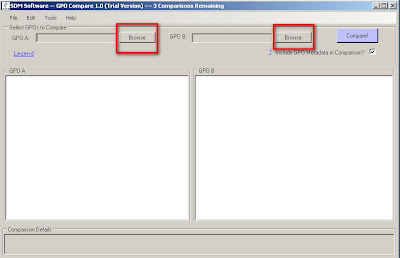
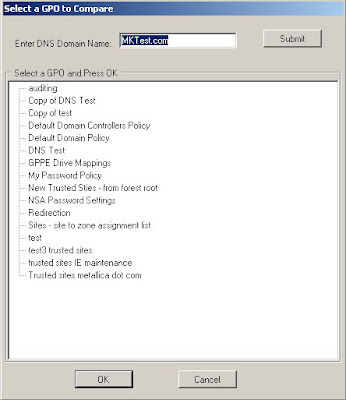
When you select Browse you will be presented with a screen that shows all the policies for your domain.
For this example I'll be using two password policies.
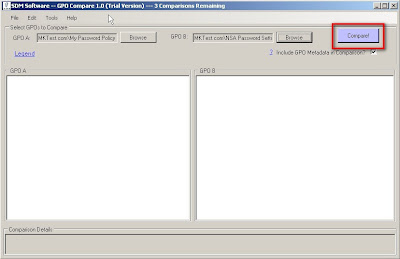
You will notice the check box labeled "Include GPO Metadata in Comparison?"
That setting/option includes comparisons of GPO metadata such as created and modified dates, security permissions and links. If the option is unchecked then those items are not included in the comparison. For this first run I'll include those items.
So for these policies for instance if I don't select it then there are only 6 differences versus 11.
...so now as you guessed it you can go ahead and select compare:
When you run the compare the first thing you will see is a box telling you how many differences there are. As you can see in the screenshot there are 11 differences between my two GPOs.
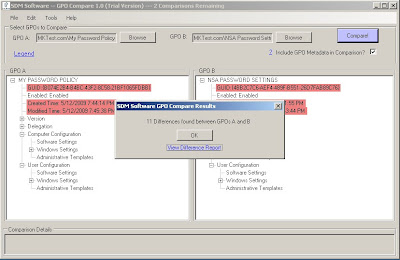
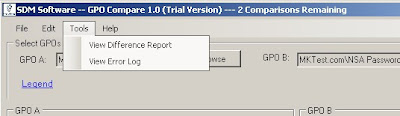
You can view the difference report from this dialogue box or you can access the report from the Tools menu.
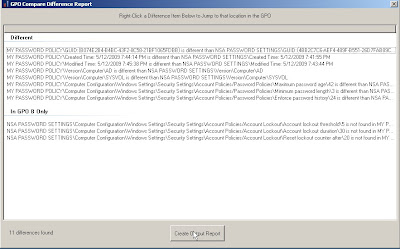
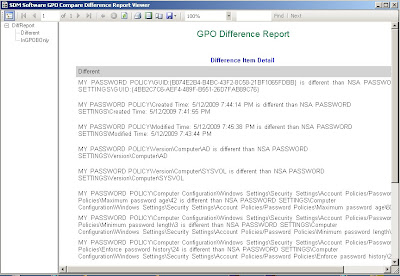
The GPO Compare Difference Report will show you the differences between the group policies.
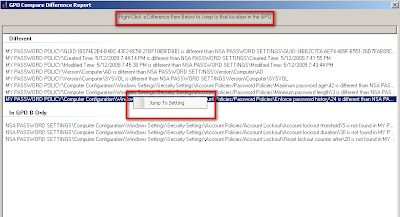
As you can see you can also right click and jump directly to that particular setting/difference.
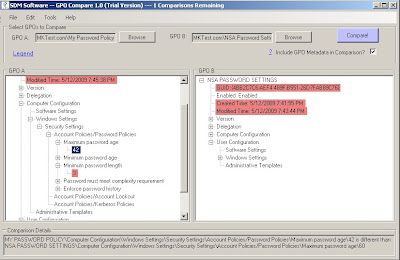
After you select "jump to setting" you will be directed back to the main page and the exact details are spelled out in the "comparision details" section
My favorite part is the GPO Difference Report that you can create. You can save it or print it. Very easy for even managers to follow :)
An example of the GPO Difference report is in the screenshot below
My overall thoughts is that this is a great tool!! It is very easy to use, the full version costs less than $100 and it really fills a much needed void in the group policy landscape.
Final Verdict = 4/4 OUs - WELL DONE!!

Today we start with GPO Compare.
GPO Compare is produced by SDMSoftware If you don't know SDMSoftware then you probably know their founder. Darren Mar-Elia is the founder and has been a long time group policy MVP and generally considered one of the best group policy guys in the business.
Currently there are no free native Microsoft tools that can be used to compare the differences between two group policies. Microsoft does make a product called Advanced Group Policy Managment (AGPM) AGPM is part of the Microsoft Desktop Optimization Pack (MDOP). MDOP is only available to software assurance customers.
Many are not software assurance customers so they are out of luck...until now.
...so let's start the review.
The first thing you will want to do is download GPO Compare. You can get it here
What I first noticed is that I had a fully functional trial. That is always nice because I didn't have any features blocked or not available.
The download is approximately 7MB and the install is super easy and fast.
After you install and launch the program the first screen you see is self explanatory. As you can see in the screen shot below you can browse for two group policy objects (GPOs).

When you select Browse you will be presented with a screen that shows all the policies for your domain.
For this example I'll be using two password policies.

You will notice the check box labeled "Include GPO Metadata in Comparison?"
That setting/option includes comparisons of GPO metadata such as created and modified dates, security permissions and links. If the option is unchecked then those items are not included in the comparison. For this first run I'll include those items.
So for these policies for instance if I don't select it then there are only 6 differences versus 11.
...so now as you guessed it you can go ahead and select compare:

When you run the compare the first thing you will see is a box telling you how many differences there are. As you can see in the screenshot there are 11 differences between my two GPOs.

You can view the difference report from this dialogue box or you can access the report from the Tools menu.

The GPO Compare Difference Report will show you the differences between the group policies.

As you can see you can also right click and jump directly to that particular setting/difference.

After you select "jump to setting" you will be directed back to the main page and the exact details are spelled out in the "comparision details" section

My favorite part is the GPO Difference Report that you can create. You can save it or print it. Very easy for even managers to follow :)
An example of the GPO Difference report is in the screenshot below

My overall thoughts is that this is a great tool!! It is very easy to use, the full version costs less than $100 and it really fills a much needed void in the group policy landscape.
Final Verdict = 4/4 OUs - WELL DONE!!

Subscribe to:
Posts (Atom)


 Posts
Posts


